
- Free
- Nothing uploaded
- Rows, size, column, date or range
How to use it
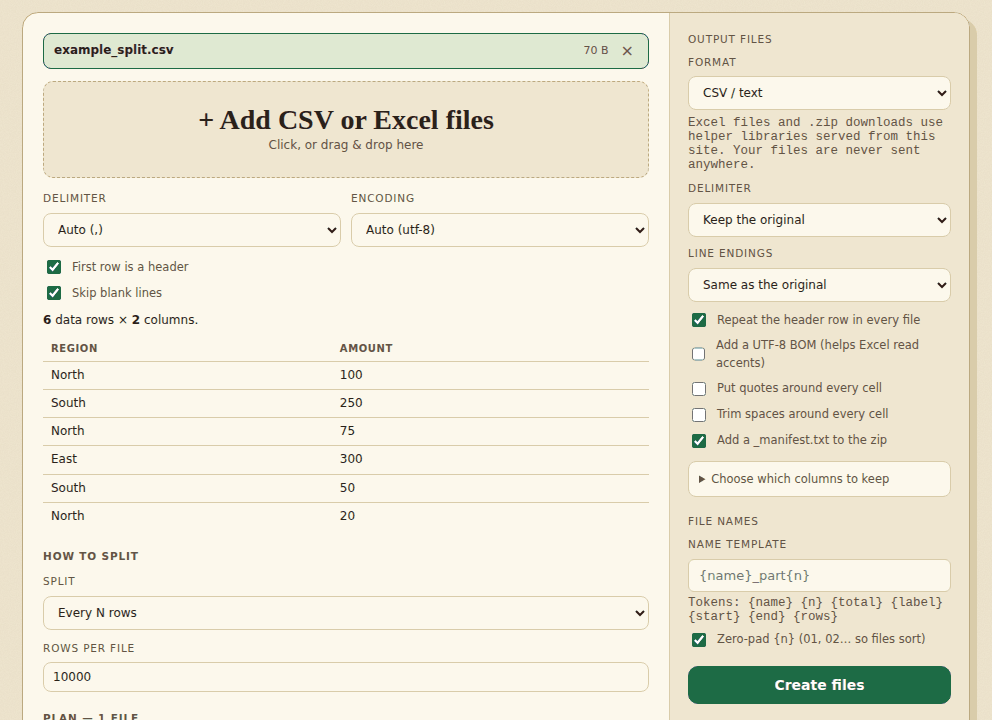
- Add your fileDrop in a CSV, TSV, text or Excel file. For an Excel file, pick the worksheet to split.
- Choose how to splitEvery N rows, into N equal files, by maximum file size, by a column’s value, by date, by number ranges, by a condition, at random (for example train and test) or round-robin. The table shows the files you will get before anything is created.
- DownloadSave everything as one .zip, or file by file. The zip can include a manifest that checks the row counts add up.
Good to know
The header row is repeated in every file unless you turn that off. Splitting by file size needs CSV output, because Excel files are compressed and their size can’t be predicted. One split makes at most 5,000 files. An Excel file is split one worksheet at a time and its cells are read as displayed, so a formula becomes its result. Excel output has one worksheet per file, with numbers stored as text unless you tick the option. The new files are built in memory, so very large files can be slow. Files you add are kept in this browser so they survive a refresh; “Clear saved files & reset” in the tool, or “Clear saved data” in the menu, removes them.
Worked example: split by column and by rows
Take a six-row sales file:
region,amount
North,100
South,250
North,75
East,300
South,50
North,20
By a column's value (the region column) gives three files, one for each region. The zip holds:
| File | Contents |
|---|---|
| data_North.csv | header + 3 rows (100, 75, 20) |
| data_South.csv | header + 2 rows (250, 50) |
| data_East.csv | header + 1 row (300) |
| _manifest.txt | a summary: each file with its row count and source rows, ending “Check: 6 rows in = 6 rows out” |
Every file starts with the header row, so each one opens on its own.
Every N rows with N = 4 gives data_part1.csv (4 rows) and data_part2.csv (the last 2 rows). The first file holds source rows 1 to 4 and the second rows 5 and 6, and the manifest records that. Change the name template to use {name}, {n}, {total}, {label}, {start}, {end} and {rows}.
Which mode for which job
- Every N rows / into N equal files: files for email limits or import limits. With N equal files, sizes differ by at most one row.
- By maximum file size: CSV output only, because Excel files are compressed and their size cannot be predicted.
- By column, date or number range: one file per customer, per month, or per price band. Dates can be cut by year, quarter, month, week or day, in year-month-day, day-month-year or month-day-year order.
- By a condition: for example rows where a column contains a word or a number is greater than a value, with the matches and the rest written to separate files.
- Random split: for example 80/10/10 into train, test and validation. The same seed gives the same split every time.
- Round-robin into N files: row 1 to file 1, row 2 to file 2, and so on, to share work evenly.
Excel output (one workbook per file) is also available. After splitting you can put files back together with Merge CSV files, or clean each piece with Remove duplicate rows. Too big to open at all? Large file viewer.
How we tested this
On 31 October 2026 we ran the live page in headless Chromium on a Linux cloud server, driving it the way a person would (adding files, clicking the buttons, saving the download) and checking the files it produced.
| What we checked | Result |
|---|---|
6 random CSV files of 7, 30 or 120 rows (text with commas, quotes, new lines, accents, Japanese, 007 and empty cells), each split in 7 modes: every N rows, N equal files, by column, by date, by number range, round-robin and random with a seed. For each of the 42 splits: rows in equals rows out, the header is in every file, and the rows are exactly the original rows | 126 of 126 |
| Mode rules: every file holds N rows except the last; equal files differ by at most one row; each column-split file has one value; each date-split file has one month; round-robin row j lands in file j mod N; the same seed repeats the same random split | 36 of 36 |
| The six-row example above (3 files plus manifest; 4 + 2 rows), and Excel output (2 workbooks, header and 4 rows in the first) | 4 of 4 |
| 300,000 rows split into 6 files with none lost, no page errors, no requests to other sites (about a second after the file was added, in our run) | 3 of 3 |
| Total | 169 of 169 |
Not tested: The “by maximum file size” and “by a condition” modes were not part of these tests. Splitting to Excel output was checked on a small file only.
Frequently asked questions
Which files can I split?
Excel files (.xlsx, .xls, .xlsm, .ods) and CSV, TSV and text files. An Excel file is split one worksheet at a time; you choose which.
Is my file uploaded?
No. The splitting happens in your browser and nothing is sent to a server. After your first visit the page also works offline; Excel files and .zip downloads need a small library from this site that is saved the first time you use them. Files you add stay in this browser’s own storage until you clear them.
Can I split by a column?
Yes. Pick a column and you get one file for each different value in it. You can also split by date (year, quarter, month, week or day), by number ranges you set, or by a condition such as “contains” or “is greater than”.
How do I get the files?
As one .zip file, or one by one. Many browsers ask before letting a page download several files in a row, so the zip is the easier choice.
How many files can it make?
Up to 5,000 in one split. If your settings would make more, the tool says so and creates nothing.
Does it check that no rows are lost?
Yes. Before anything is downloaded it compares the rows in with the rows out, and stops with a message if they differ. The optional manifest in the zip lists each file with its row count.
Where to go next
- To put the parts back together, merge the CSV files.
- Before you split, remove duplicate rows so no one gets a line twice.
- If the parts go to outside people, anonymize the personal columns first.
When people use it
- An export with hundreds of thousands of rows has to be cut into files another system accepts.
- You want one file per region or per sales rep so each person gets only their rows.
- An email provider refuses the attachment because the workbook is too big.