
- Free
- Nothing uploaded
- Nothing saved
How to use it
- Add your CSVDrop in a CSV, TSV or text file. The separator is found for you, and you can change it. If the first row is data rather than column names, untick the box so that row is anonymized too.
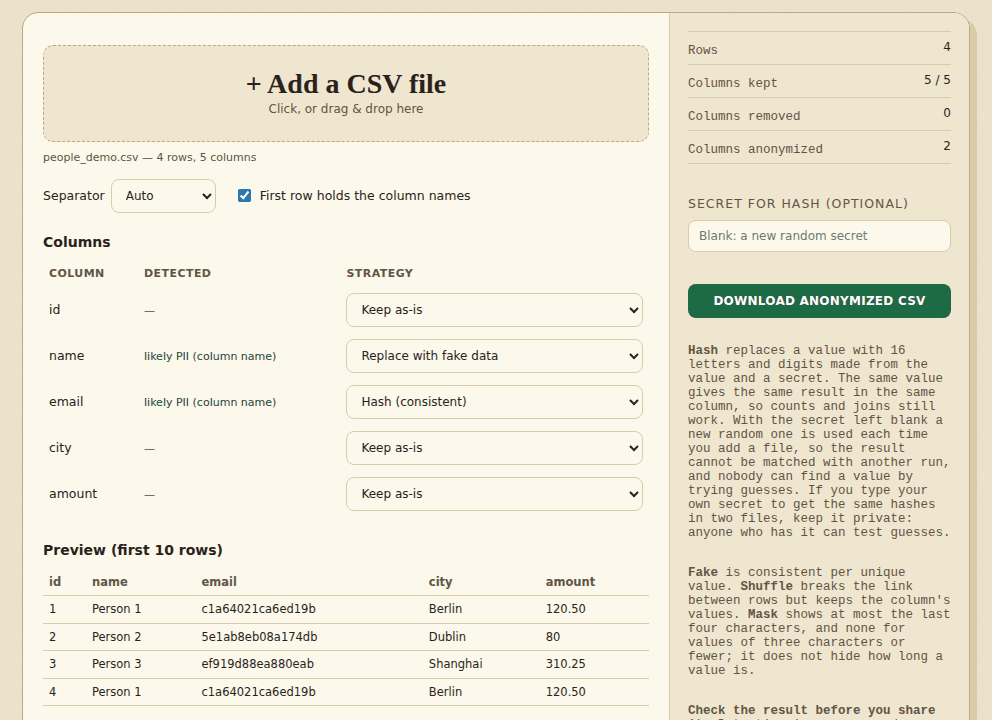
- Review every columnColumns that look like personal data are flagged and given a suggested action, judged from the column name and from the values. Choose what to do with each column: keep, remove, mask, hash, replace with fake data or shuffle. The preview shows the first 10 rows.
- Check and downloadRead the notes above the table: they list kept columns that still contain what looks like an email address or ID number. Then save the anonymized CSV.
Good to know
Detection is a guess from column names and from the values in a column. It can miss columns, and it does not look inside free text such as a notes column, apart from a warning when a kept column contains email addresses or ID numbers like 000-00-0000. Review every column yourself. Masking, hashing and fake data lower the risk but do not make a file anonymous: several harmless-looking columns together, such as postcode, birth date and job title, can still point to one person. Check the result before you share it. The file you add and the secret you type are not saved anywhere; reload the page and they are gone. Cells in kept columns are written exactly as they were, including any that start with =, +, - or @.
Worked example: a small customer list
This is the file we used. Row 4 repeats row 1 on purpose:
id,name,email,city,amount
1,Anna Müller,[email protected],Berlin,120.50
2,Pat O'Neil,[email protected],Dublin,80
3,Li Wei,[email protected],Shanghai,310.25
4,Anna Müller,[email protected],Berlin,120.50
The tool marked name and email as likely personal data from the column names, and suggested a strategy for each. We kept those suggestions, left the other three columns as they were, and typed the secret demo-secret in the box below the preview. The file it wrote:
id,name,email,city,amount
1,Person 1,b087b997de80a02c,Berlin,120.50
2,Person 2,338479f63ddc5888,Dublin,80
3,Person 3,ebca4e2e5ac81a08,Shanghai,310.25
4,Person 1,b087b997de80a02c,Berlin,120.50- Names became “Person 1”, “Person 2” and so on (replace with fake data). Emails became a short code (hash).
- The same input always gives the same output. Rows 1 and 4 still match each other, so you can count customers or find duplicates in the anonymized file.
- The hash depends on the secret. The codes above come from
demo-secret. With a different secret, or with the box left blank (a new random secret each time), you get different codes, so keep the secret if you need to match two files later. - Columns it did not flag still hold real data. The city and the amount are unchanged here, and a city plus an amount can identify a person. Check every column yourself before you share the file.
Frequently asked questions
Which files can I use?
CSV, TSV and text files separated by commas, semicolons, tabs or pipes. The file may be UTF-8, UTF-16 or Windows-1252; the last one is read with a note. Excel files are not read here: export the sheet as CSV first, for example with the XLSX to CSV converter on this site.
How does it find personal data?
Two ways. It reads the column name (for example email, phone, name, address, birth date, ID number, card number, IP address, postcode) and, for columns whose name does not give it away, it looks at the values: email addresses, ID numbers written like 000-00-0000, card numbers that pass the card checksum, IP addresses and phone numbers. It is a helper, not a guarantee, so check the list yourself.
What do the actions do?
Keep leaves the column as it is. Remove deletes it. Mask replaces all but the last few characters with *: at most the last four, one quarter of the value, and nothing for values of three characters or fewer. It does not hide how long a value is. Hash replaces each value with 16 letters and digits. Fake replaces values with made-up ones such as Person 1 or [email protected], the same fake value for the same original value. Shuffle moves the values of the column to other rows.
How does Hash work?
Each value is combined with a secret and the column name and run through SHA-256; the first 16 hexadecimal characters are kept. The same value gives the same result in the same column, so counts and joins on that column still work. The same value in two different columns gives different results. With the secret box left empty, a new random secret is used each time you add a file, so the result cannot be matched with another run and nobody can find a value by trying guesses. If you type your own secret to get the same hashes in two files, keep it private: anyone who knows it can test guesses such as a list of email addresses.
Is my data uploaded or saved?
No. Everything runs in your browser and nothing is sent to a server. Unlike the other tools on this site, this one does not keep a copy of your file in the browser either, and it does not store the secret. After your first visit the page also works offline.
Is the result guaranteed to be anonymous?
No. Check the output. Anyone who knows other facts about the people in the file may still work out who they are, and personal data can sit in places the tool cannot see, such as free-text columns. If the data is sensitive or covered by law, ask someone who handles that for you.
What about the first row?
By default the first row is read as column names and is left as it is. If your file has no header row, untick the box: the first row is then treated as data and is anonymized, and the saved file has no header row.
How big a file can it handle?
There is no fixed limit; it is limited by your browser’s memory. In testing, a file with 300,000 rows and 5 columns loaded and was saved in a few seconds. Each time you change an action only the preview is rebuilt; the whole file is built when you press Download.
How is the file saved?
As a CSV with the same separator as the file you added, UTF-8 without a byte-order mark, and rows ending in CRLF. Cells are put in quotes only when they need to be. Some versions of Excel show accents wrongly when you double-click a UTF-8 file without a byte-order mark; if that happens, open it with Data, From Text/CSV and choose UTF-8.
Where to go next
- To hand each person only their part, split the file after masking it.
- Remove duplicate rows before or after masking to keep the list tidy.
- Starting from a workbook? Convert the sheet to CSV first.
When people use it
- You want to share a customer export with a contractor without names and emails in it.
- A bug report needs sample data, but the real file contains personal details.
- You are preparing a training dataset and must mask the identifying columns first.