
- Free
- Nothing uploaded
- Match by column name or stack
How to use it
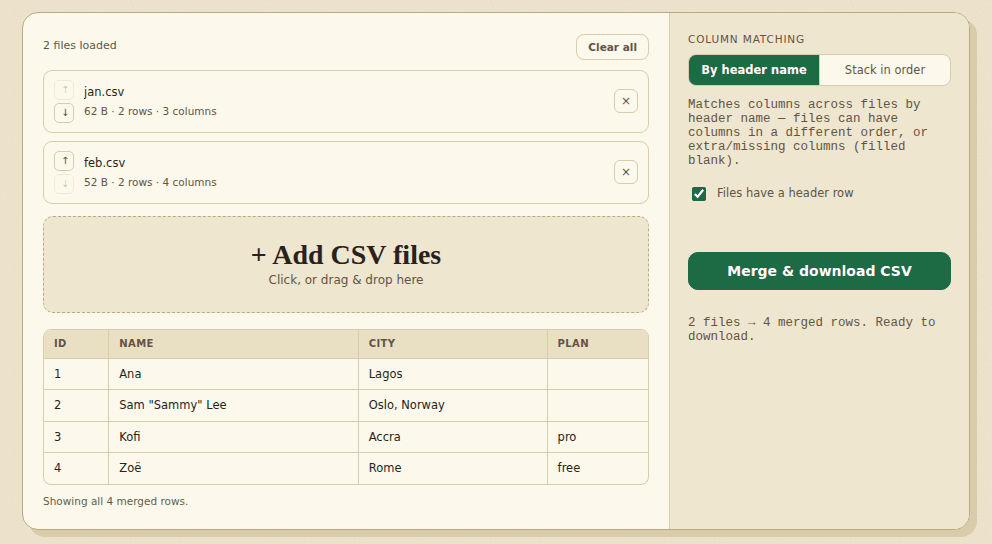
- Add your filesChoose two or more CSV files. Use the arrows to put them in the order you want, and switch off “Files have a header row” if yours have none.
- Choose how to match“By header name” lines the columns up by their names, even if the files have them in a different order or some are missing. “Stack in order” simply puts the files one under another.
- DownloadCheck the preview of the first 50 rows, then save merged.csv.
Good to know
“By header name” ignores capitals and spaces around a name, lists the columns in the order they first appear, and leaves a cell blank where a file lacks that column. It warns you when a row has more values than its header (those values would be left out), when a file has two columns with the same name, and when a file is not UTF-8. “Stack in order” keeps the first file’s header and adds the other files’ rows exactly as they are, so the columns must already line up; it only warns when the number of columns differs. Each file’s separator (comma, semicolon, tab or pipe) is detected on its own, and the merged file uses the first file’s. Cells are copied exactly as they are. The merged file is UTF-8 without a byte-order mark; if Excel shows accents wrongly when you double-click it, open it with Data > From Text/CSV and choose UTF-8. All files are held in memory, so very large sets can be slow. The two options are remembered in this browser; your files are not stored.
Worked example: two files with different columns
January's export has three columns. February's was made by someone else: the columns are in a different order, the names are capitalised differently, and there is an extra Plan column.
jan.csv
id,name,city
1,Ana,Lagos
2,"Sam ""Sammy"" Lee","Oslo, Norway"
feb.csv
City,ID,Plan,Name
Accra,3,pro,Kofi
Rome,4,free,Zoë
merged.csv, “By header name”
id,name,city,Plan
1,Ana,Lagos,
2,"Sam ""Sammy"" Lee","Oslo, Norway",
3,Kofi,Accra,pro
4,Zoë,Rome,free
The columns are matched by name, ignoring capitals and spaces (ID is the same column as id). The first file's spelling is kept for the header, columns are listed in the order they first appear, and the cells January never had for Plan are left blank. Commas and quotes inside cells ("Oslo, Norway", "Sam ""Sammy"" Lee") are written correctly. The file uses Windows line endings and UTF-8 without a byte-order mark.
Stack in order would give the wrong answer here: it keeps January's header (id,name,city) and puts February's rows underneath exactly as they are, so Accra,3,pro,Kofi would sit under id,name,city. The tool warns you when files have a different number of columns (“These files have a different number of columns (3, 4) …”). Use Stack only for files from the same source with identical columns.
Other things worth knowing
- Mixed separators. Each file's separator is detected separately. We merged a semicolon file with a comma file; the result used the first file's separator (
id;name). - Header names that differ more than in capitals (
E-mailandEmail) count as different columns. Fix the names first, or rename in a spreadsheet. - Order of rows follows the order of the files in the list; move a file with its arrows.
- Excel files are not read here: export each sheet with XLSX to CSV first.
After merging, remove repeated rows with Remove duplicate rows, or cut the result into pieces with Split a file.
How we tested this
On 31 October 2026 we ran the live page in headless Chromium on a Linux cloud server, driving it the way a person would (adding files, clicking the buttons, saving the download) and checking the files it produced.
| What we checked | Result |
|---|---|
| 40 random sets of 2 or 3 files, merged by header name: different column sets and orders, names in other capitals or with extra spaces, cells with commas, quotes, new lines, accents and Japanese. The output matched the table we built separately | 40 of 40 |
| 20 random sets of 2 or 3 files with identical columns, merged with Stack in order: header kept once, rows in file order | 20 of 20 |
| The January and February example (header order, blank cells, no BOM, Windows line endings), the column-count warning for Stack, and a semicolon file merged with a comma file | 6 of 6 |
| A 300,000-row file plus a small file: 300,003 lines downloaded (header and 300,002 rows), no page errors, no requests to other sites | 3 of 3 |
| Total | 69 of 69 |
Not tested: Files that are not UTF-8, and sets of more than two large files at once. The 300,000-row merge (10.7 MB of output) took under a second after adding the files, in our run; your device will differ.
Frequently asked questions
How many files can I merge?
There is no fixed limit. Every file is read into your browser’s memory, so very large sets can be slow or fail. In testing, a 300,000-row file merged with another in a few seconds.
What if my files have different columns?
Use “By header name”. Columns with the same name are matched, extra columns are added, and a cell is left blank where a file has no such column. Names that differ only in capitals count as the same column.
Is my data uploaded?
No. The merge happens in your browser and nothing is sent to a server. After your first visit the page also works offline.
Can I merge Excel files?
This tool reads CSV and text files only. To use an Excel sheet, export it as CSV first, for example with the XLSX to CSV converter on this site.
In what order are the rows?
In the order of the files in the list, and in each file’s own order. Use the arrows next to a file to move it.
Where to go next
- After merging, remove duplicate rows that appear in more than one file.
- To cut the merged file back into pieces, split it by column or by rows.
- To see the combined data at a glance, turn it into a chart.
When people use it
- You have one CSV per month and need a single file for the year.
- Exports from two systems share most columns but not all of them.
- You received the same report in several pieces and want it back in one.